
 Customer log in
Meet Informax Cloud
Open. Update. Publish.
Get on with your day.
Guest information should not take over your working day. Informax Cloud puts your Spaces, Scan Points and content in one clear place, so your team can find the right item and keep it current.
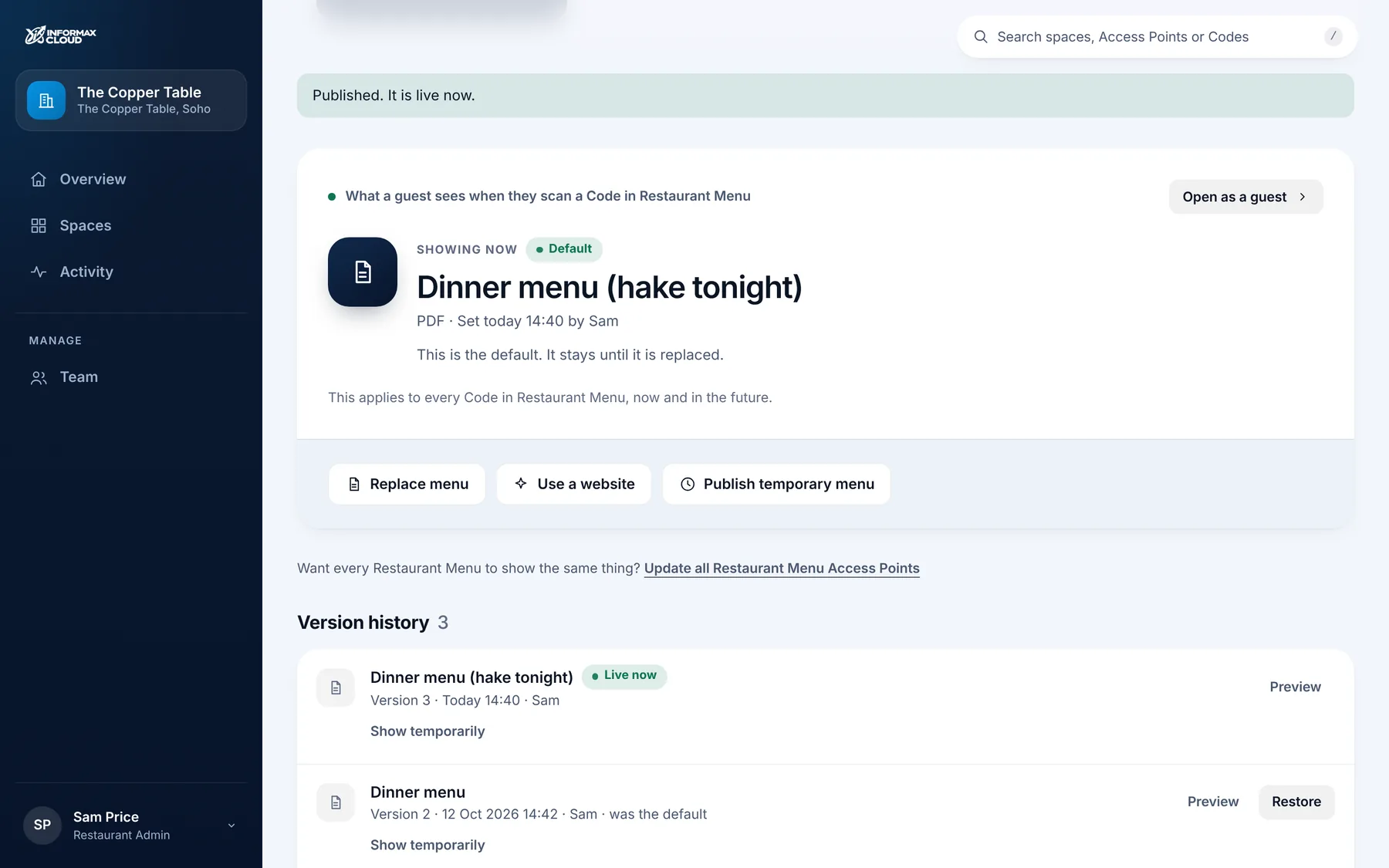
A preview of Informax Cloud, coming soon. Real screens from the development build; the businesses shown are fictional.
A familiar way to work
From your first Space to your first guest scan.
- Step 1
Name your Space
A Space is an area of your property, such as the Spa, Main Restaurant or Bedrooms. Keep the names familiar to your team.
- Step 2
Add a Scan Point
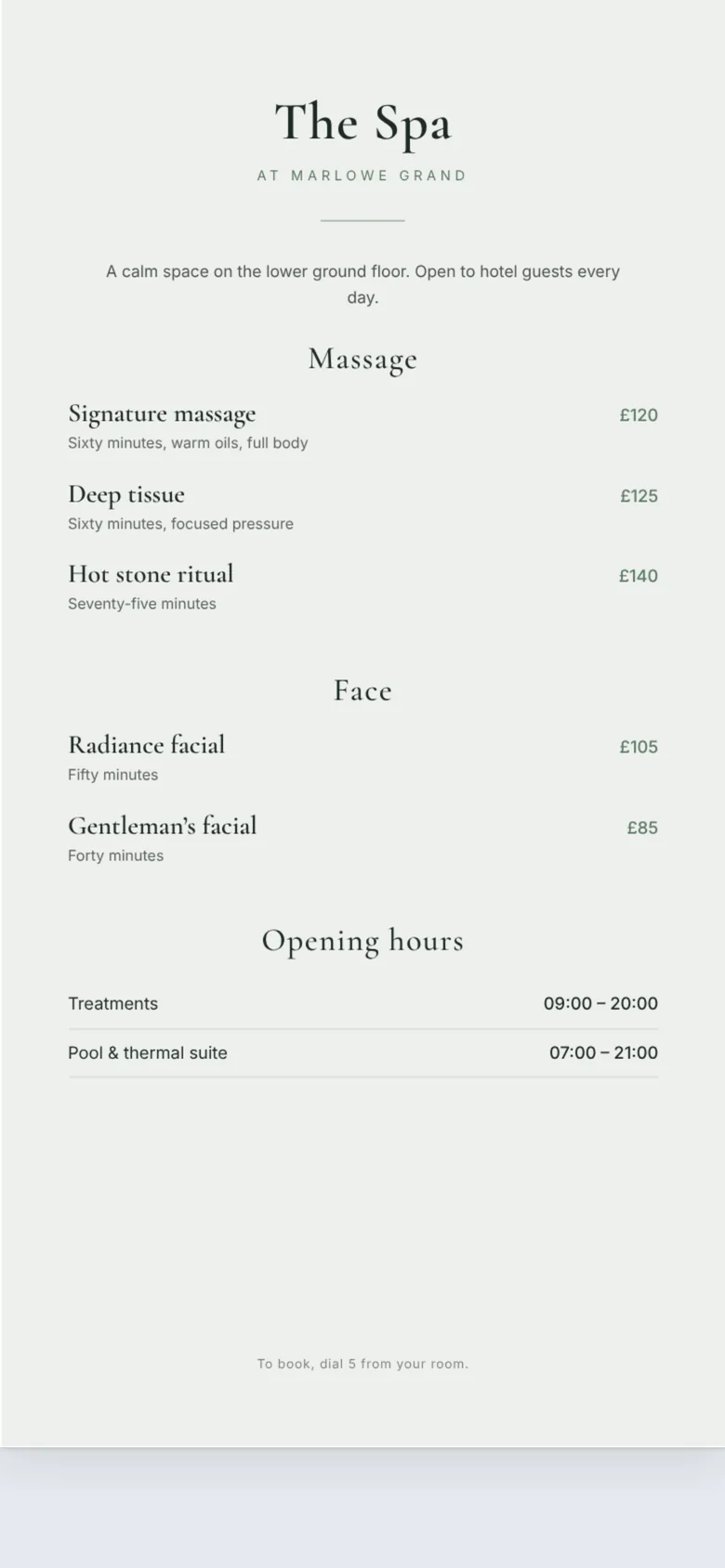
Give each thing guests need a place: Restaurant Menu, Spa Treatments or Guest Directory. Each Scan Point has its own permanent QR code.
- Step 3
Choose what it shows
Upload your PDF or add a website address. Check the preview, then publish when you are ready. Bring your existing content or use our design services.
- Step 4
Download, print and update
Place copies of the QR code wherever guests need them. When your information changes, update it in Cloud. Every copy keeps working.
Check before you publish
Know what your guests are about to see.
Open the Scan Point, choose your updated PDF or website, and check it before publishing. The overview helps your team see what is showing and where to make the next change.
Menus are updated by uploading your revised PDF. Your existing design tools still do the design work; Cloud manages how guests access the result.
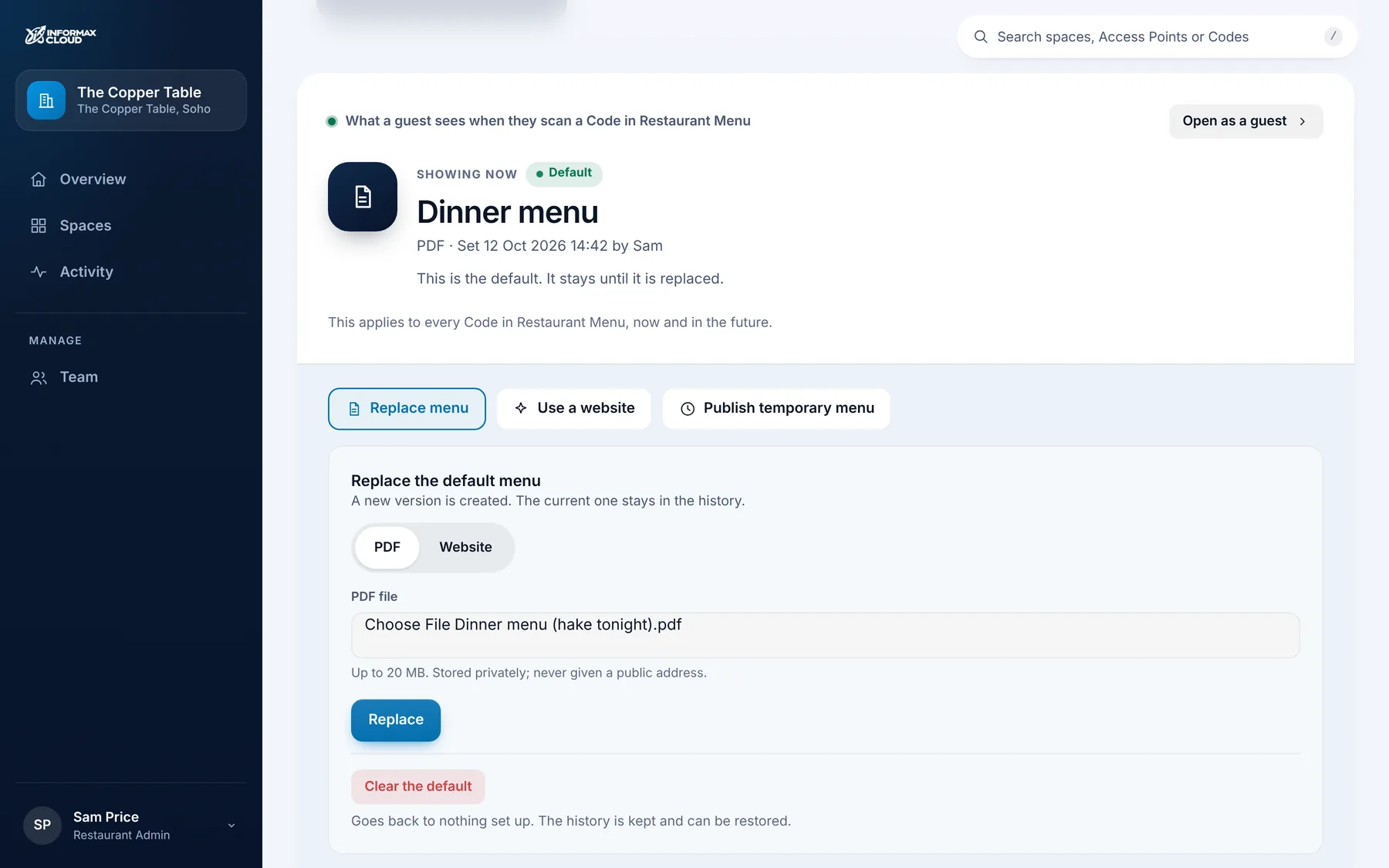
Less to remember at the end of a shift
A special for today. An end time you can trust.
Show a seasonal menu, a spa offer or a temporary update, with a clear end time. When it ends, Cloud shows the scheduled content that is then due, or your usual content if there is no schedule.
Use the calendar to prepare content for different times. Keep the current PDF and two previous versions, so you can restore a recent version without storing every upload.
A clear setup for your team
One main administrator. Your team, working together.
Built around everyday updates
- PDFs and websites in one place
- The same QR code after each update
- Temporary content with an automatic end time
- Schedules for content that changes through the day
- Current PDF plus two previous versions to restore
- Updates from a phone or computer
Self-service account setup, billing and the simplified team model are being prepared for launch. The demo shows the current development experience.
Your content. Your identity.
Bring your own design. Or let us create it.
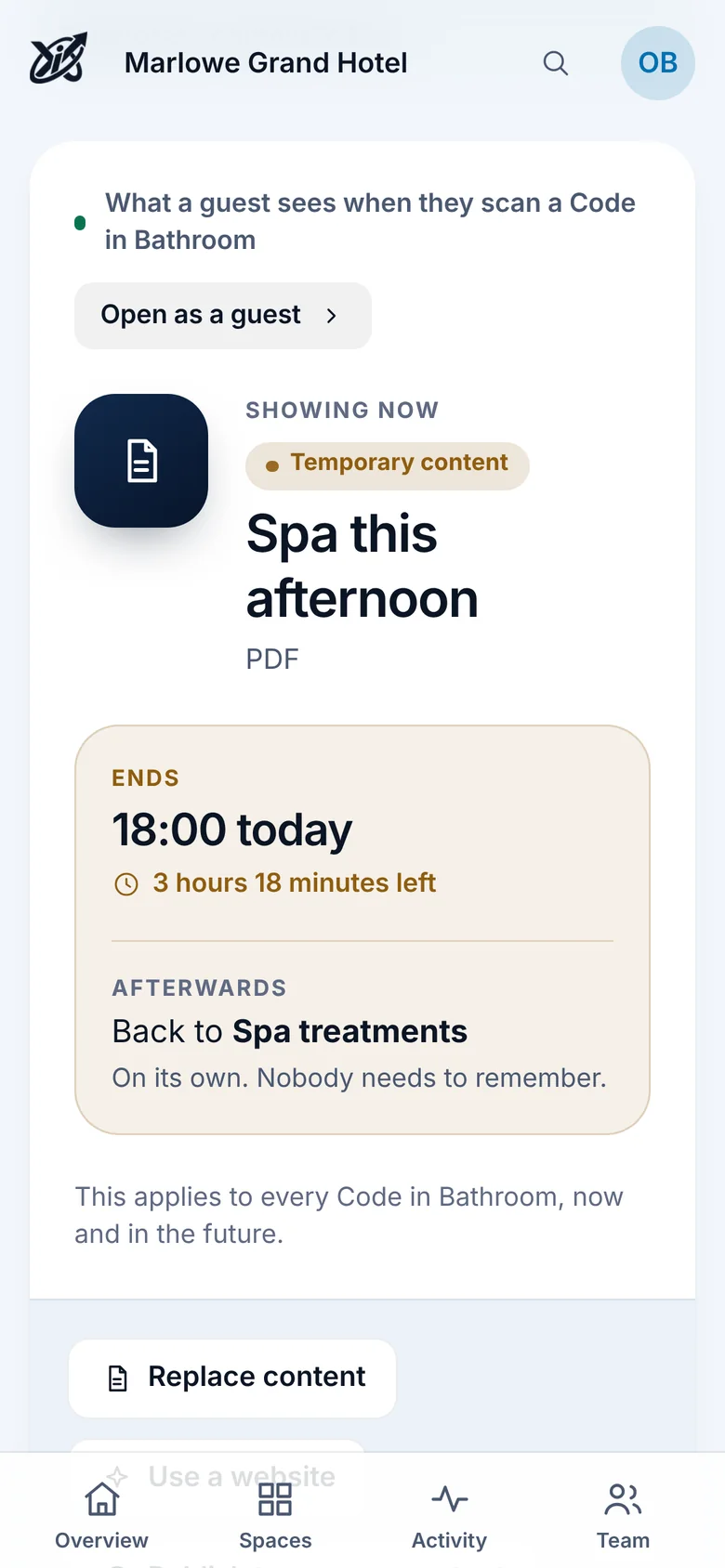
Already have a menu, guest directory or spa guide? Upload your PDF or link to your website. If you want a more polished result, Informax can design the content around your brand.
Our demo uses Informax sample designs, so you can see how your own materials could look. Bespoke design is an optional, separately quoted service.
Talk about your design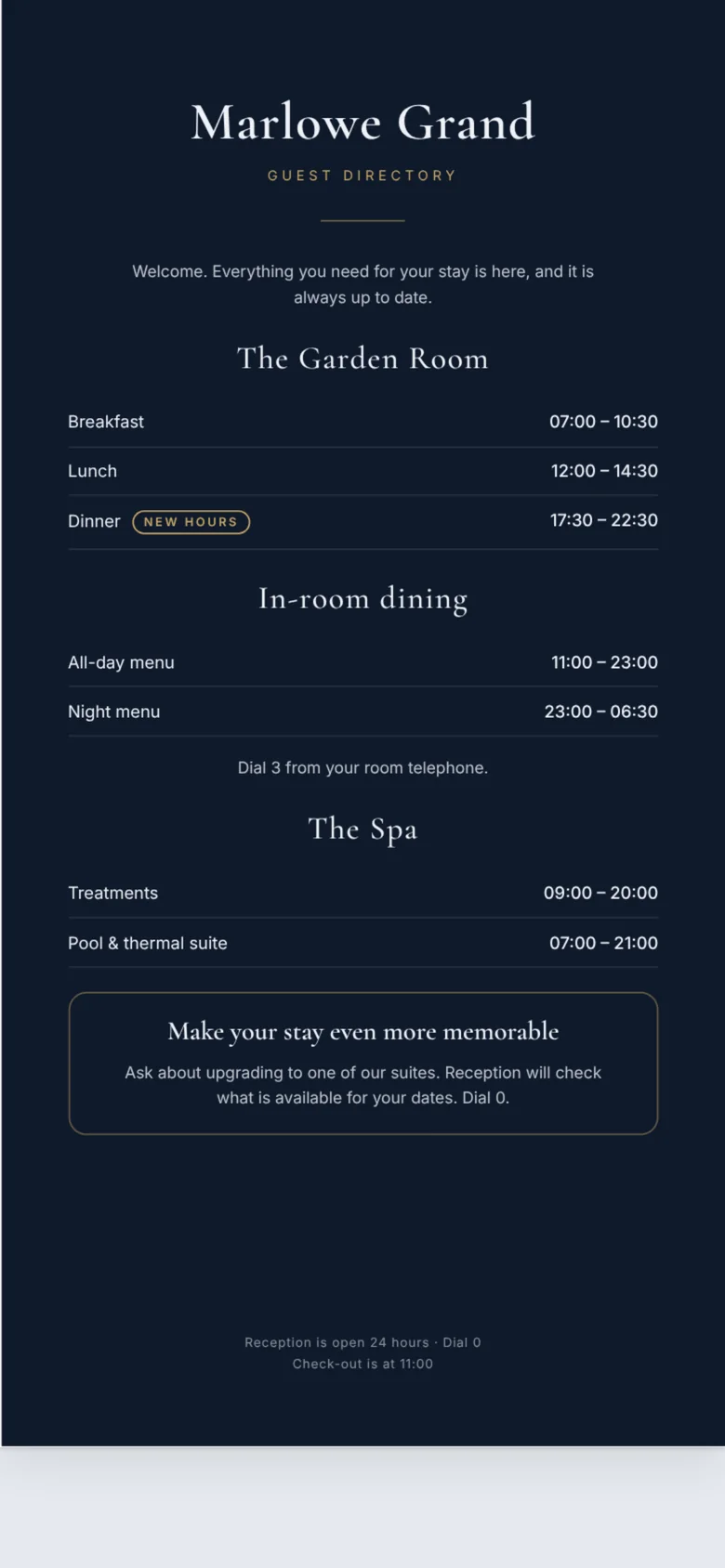
See it once. Picture it in your property.
Our sample designs show the guest experience. Our demo shows the everyday workflow. Explore the plans when you are ready.